



TurboTax Back Taxes: How To File Prior-Year Tax Returns
You missed a filing deadline. Maybe life got in the way, or you didn't realize you owed. Either way, you now have one or more unfiled tax returns, and you've been searching for TurboTax back taxes solutions to get caught up. You're not alone, the IRS estimates millions of prior-year returns go unfiled every year, and the longer they sit, the more penalties and interest pile up.
TurboTax does offer options for filing previous years' returns, but the process isn't as straightforward as filing a current-year return. There are version limitations, software availability windows, and filing restrictions you need to know about before you start. Choosing the wrong approach, or missing key deductions on an older return, can cost you money or trigger unwanted IRS attention.
This guide walks you through exactly how to file back taxes with TurboTax, which tax years the software supports, what it costs, and where the DIY approach falls short. We'll also cover IRS rules for prior-year filings, including how far back you can file, what happens if you owe, and how to handle state returns alongside federal ones. If your situation turns out to be more complex than a simple late filing, multiple years unfiled, missing documents, or IRS notices already in your mailbox, our team at TaxesToday specializes in exactly that kind of work. We've helped clients across California and nationwide get back into compliance with affordable, professional back tax preparation. But first, let's start with what TurboTax can actually do for you.
What counts as back taxes and when you must file
"Back taxes" is a broad term that covers any federal or state tax liability from a prior year that hasn't been fully paid or reported. This includes unfiled returns from years past, returns you filed but didn't pay in full, and returns the IRS filed on your behalf (called a Substitute for Return, or SFR). When you search for TurboTax back taxes guidance, you're likely dealing with at least one of these scenarios, and understanding which one applies to you shapes the entire approach you'll take.
The IRS definition of back taxes
The IRS considers a tax return "back" the moment the filing deadline passes without a completed, accepted return on file. For most individuals, that deadline is April 15 each year. If you missed it without filing an extension, every day after that date adds potential penalties and interest to your account. The IRS distinguishes between two situations: failure to file (you never submitted a return) and failure to pay (you filed but didn't send the money). Both carry penalties, but failure to file is significantly more expensive.
Failure-to-file penalties run at 5% of unpaid taxes per month, up to a maximum of 25% of the total owed, while failure-to-pay penalties run at just 0.5% per month, making it worth filing even if you can't pay the full balance.
When you're legally required to file
Not everyone is legally required to file a federal return, but most working adults are. The IRS sets gross income thresholds that trigger a filing requirement, and these change slightly each year. If your income exceeded the threshold for a given year, you were required to file, regardless of whether you owe money or expect a refund.
Here are the 2023 filing thresholds as a reference point (thresholds for prior years will be slightly lower):
| Filing Status | Age | Gross Income Threshold |
|---|---|---|
| Single | Under 65 | $13,850 |
| Single | 65 or older | $15,700 |
| Married Filing Jointly | Both under 65 | $27,700 |
| Married Filing Jointly | One spouse 65+ | $29,200 |
| Married Filing Jointly | Both 65+ | $30,700 |
| Head of Household | Under 65 | $20,800 |
| Head of Household | 65 or older | $22,650 |
| Self-employed | Any age | $400 net earnings |
Even if your gross income falls below these thresholds, you may still need to file if you had self-employment net earnings exceeding $400, received advance premium tax credits, or owe alternative minimum tax. Check the IRS instructions for the specific year you're filing to confirm your exact requirement, since the rules shifted year to year.
Consequences of not filing on time
Skipping a filing deadline doesn't make the obligation disappear. The IRS has a 10-year collection window for unpaid taxes, and they actively pursue non-filers using income data reported by employers, banks, and other payers. If you have multiple years of unfiled returns, the IRS may file SFRs on your behalf using only the income information they already have on record. SFRs typically ignore deductions and credits you're entitled to claim, which means you could end up with a tax bill far higher than what you actually owe.
Filing your own accurate returns, even years late, almost always produces a better financial outcome than letting the IRS fill in the blanks. It also stops the failure-to-file penalty clock, which is the most important first step toward resolving any back tax situation.
How far back you can file and still get refunds
The IRS sets no hard limit on how far back you can file a late return. However, there is a strict deadline for claiming a refund: you must file within 3 years of the original due date to receive money the IRS owes you. If you file after that window closes, the IRS keeps your refund permanently, even if you had withholding and credits that clearly entitled you to it. Knowing this deadline is the first thing to sort out before you do anything else.
The 3-year refund window explained
For most tax years, the original due date falls on April 15. That means your 2021 return, due April 18, 2022 due to a calendar shift that year, had a refund claim deadline of April 18, 2025. That window has now closed. As of 2026, the refund window remains open for tax years 2022, 2023, and 2024, so if you haven't filed those years and expect money back, filing now still puts real money in your pocket.
If you had federal income tax withheld from a paycheck or made estimated payments but never filed a return, those funds are sitting with the IRS, and you only recover them by filing before the 3-year deadline expires.
Here's a quick reference for the current refund deadlines based on each tax year's original due date:
| Tax Year | Original Due Date | Refund Claim Deadline |
|---|---|---|
| 2022 | April 18, 2023 | April 18, 2026 |
| 2023 | April 15, 2024 | April 15, 2027 |
| 2024 | April 15, 2025 | April 15, 2028 |
Note that extensions push this deadline forward if you filed one. If you got a 6-month extension for 2022, your refund window may extend slightly beyond April 18, 2026. Check your records before assuming a year is off the table.
Filing older returns when you owe a balance
When you owe taxes rather than expect a refund, the IRS still expects your return regardless of how old it is. There is no statute of limitations on filing a delinquent return, and the IRS maintains a 10-year collection window from the date a balance is formally assessed. Filing those older returns stops the failure-to-file penalty from continuing to compound and starts the assessment clock, which ultimately works in your favor.
Any TurboTax back taxes work you complete on years older than 3 years won't recover a refund, but it will restore your compliance status. That matters when you apply for a mortgage, request IRS transcripts, or negotiate an installment agreement. Filing voluntarily also puts you in a stronger position if the IRS reaches out, compared to waiting for them to issue an SFR that ignores your deductions entirely.
Which prior years TurboTax supports and key limits
Before you invest time setting up an account and entering data, you need to confirm that TurboTax actually supports the year you want to file. The software does not offer unlimited access to prior-year versions, and the availability window shrinks every year as older editions are removed. Understanding where TurboTax draws the line saves you from wasted effort and points you toward a better option when the software comes up short.
Years TurboTax currently makes available
TurboTax typically keeps three to four prior-year versions available for download or online use alongside the current tax year. As of 2026, TurboTax makes software available for tax years 2022 through 2024, in addition to the current 2025 filing season. For anything filed before 2022, TurboTax no longer sells or actively supports the required software, which means you cannot use TurboTax for those older returns without sourcing a legacy copy independently, and that path comes with its own compatibility and technical problems.

| Tax Year | TurboTax Availability | Format Required |
|---|---|---|
| 2025 | Yes (current year) | Online and desktop |
| 2024 | Yes | Download or CD version |
| 2023 | Yes | Download or CD version |
| 2022 | Yes (limited) | Download or CD version |
| 2021 and older | No | Must use an alternative method |
If you need to file for 2021 or earlier, TurboTax is not your answer. A tax professional or the IRS Free File Fillable Forms at irs.gov are more appropriate options for those years.
Filing restrictions you need to know
The single most important limitation of TurboTax back taxes filings is that the IRS does not allow prior-year returns to be submitted electronically. Every prior-year return, regardless of how simple your situation is, must be printed, signed, and physically mailed to the IRS. You cannot use TurboTax's e-file feature for any year other than the current tax year. This also extends your refund timeline, since the IRS processes mailed paper returns in 6 to 8 weeks rather than the 21-day window you see with e-filed current-year returns.
Your state return adds another layer of complexity. Many states follow the same rule and require paper filing for prior-year returns, while others have entirely separate processes from whatever TurboTax handles on the federal side. Check your specific state's department of revenue website to confirm the correct mailing address and any state-specific forms required alongside the federal return. Never assume your state's prior-year process mirrors the federal one exactly.
Step 1. List the years you need to file
Before you open TurboTax or gather a single document, you need a clear list of every tax year that requires a return from you. Skipping this step means you might file the wrong years, miss one entirely, or waste time preparing a return you weren't legally required to submit. Spend 20 to 30 minutes building this list now, and every step that follows will be faster and more focused.
Check your IRS account for filing gaps
The fastest way to identify missing returns is to log into your IRS Online Account at irs.gov/account. Navigate to the Tax Records section and pull up your account transcript for each of the last six years. A transcript showing no return data for a given year confirms the IRS has no accepted return on file, which means you need to file that year. If the IRS already filed a Substitute for Return (SFR) on your behalf, you'll see a balance due on that year's transcript. Filing your own accurate return is still the right move, because the SFR ignores the deductions and credits you're legally entitled to claim, and replacing it with a correct return almost always reduces what you owe.
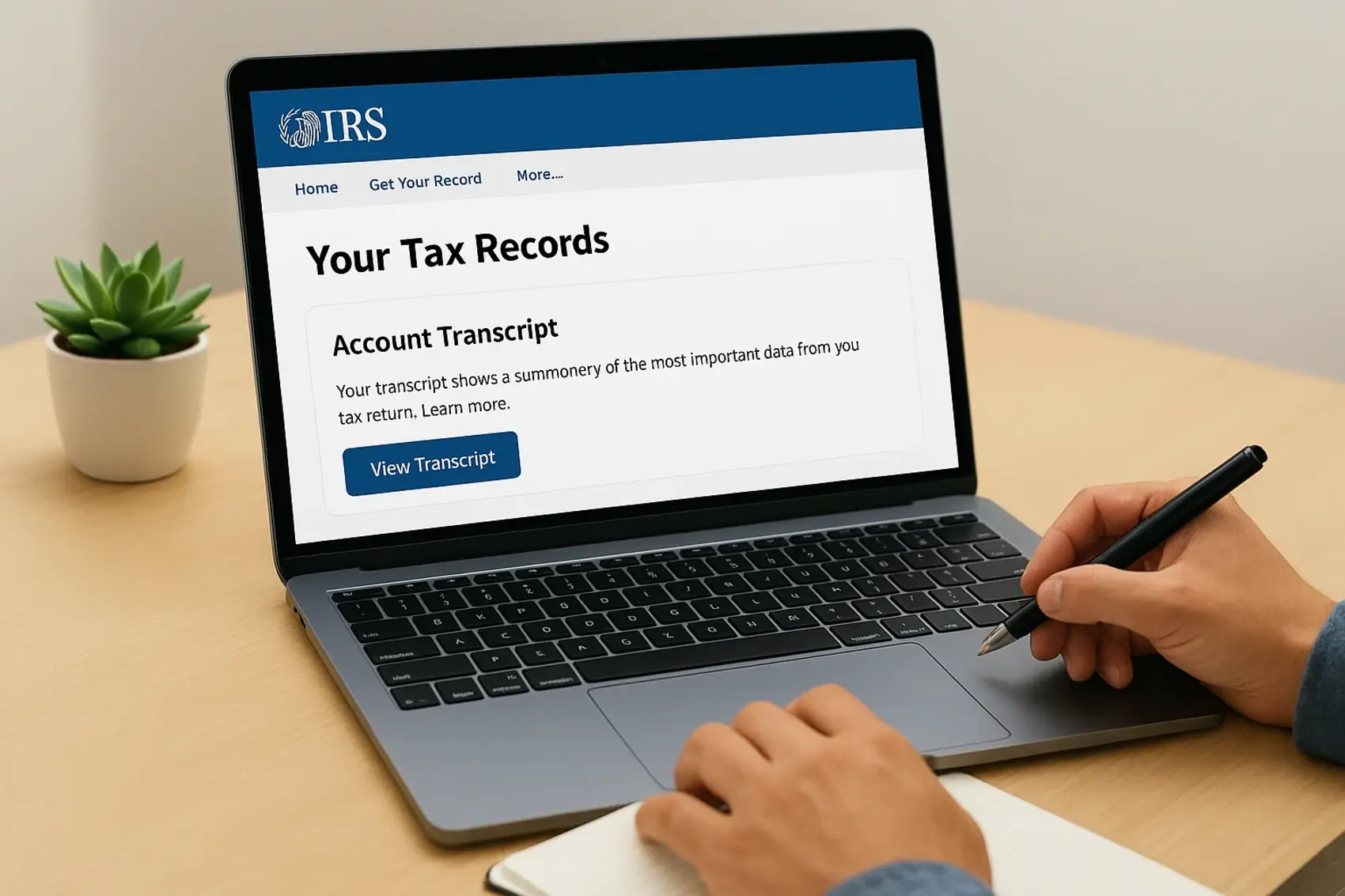
If you see an SFR balance on your transcript, filing your own return almost always lowers the amount owed, since the IRS skips your legitimate deductions entirely when they prepare the SFR.
You can also call the IRS at 1-800-829-1040 and ask a representative to confirm which prior years show no return filed. This method is slower than the online account, but it works well if you have trouble verifying your identity through the digital portal. Either way, get a confirmed list before you do anything else.
Build your filing checklist
Once you know which years are missing, write them down in order from oldest to newest. Filing in chronological order matters because carryover deductions and capital losses from one year can directly affect the calculations on the next. Use this tracking table as your master reference throughout the process:
| Tax Year | Filing Required | Refund Expected | Return Drafted | Mailed |
|---|---|---|---|---|
| 2022 | Yes / No | Yes / No | Yes / No | Yes / No |
| 2023 | Yes / No | Yes / No | Yes / No | Yes / No |
| 2024 | Yes / No | Yes / No | Yes / No | Yes / No |
For each year marked as required, note whether TurboTax supports that version based on the availability table in the previous section. Any year before 2022 needs a completely different approach, so flag those immediately rather than discovering the limitation mid-process. This checklist becomes your anchor for the entire TurboTax back taxes project as you work through each remaining step.
Step 2. Gather income and deduction records
With your filing list confirmed, the next task is tracking down every income document and deduction record for each year on that list. This is the step most people underestimate, and missing a single W-2 or 1099 can skew your numbers enough to trigger a follow-up notice from the IRS. Give yourself dedicated time for this research before you open TurboTax or any prior-year software.
Where to find income documents for prior years
Your employer and financial institutions are legally required to send copies of income documents to the IRS, which means the agency already has your data on file. You can request a Wage and Income Transcript for any prior year directly through your IRS Online Account at irs.gov. This transcript lists every W-2, 1099, 1098, and other information return submitted under your Social Security number for that year, making it the most reliable starting point when original documents are lost or unavailable.
Request your Wage and Income Transcript before contacting former employers or financial institutions, since the IRS transcript is faster and covers all payers in one place.
Former employers can also reissue a W-2 on request, and payroll platforms like ADP or Paychex often let you download prior-year forms if you still have account access. Brokerage firms typically store prior-year 1099 forms for at least 7 years in your online account, so log in and download those directly rather than waiting for mailed copies.
| Document Type | Where to Get It |
|---|---|
| W-2 | Former employer, payroll platform, or IRS transcript |
| 1099-NEC / 1099-MISC | Client, payer, or IRS transcript |
| 1099-B (investment sales) | Brokerage account |
| 1099-INT / 1099-DIV | Bank or investment account |
| SSA-1099 | Social Security Administration |
Deductions and credits to document
Deductions reduce your taxable income and can significantly shift what you owe or what you get back, so every documented expense matters. For each prior year, pull together records for mortgage interest statements (Form 1098), property tax payments, charitable contribution receipts, student loan interest, and any business expenses if you had self-employment income. These are the categories that TurboTax back taxes returns most commonly miss when people rush through older years without fully reconstructing their records first.
Bank statements and credit card records from the relevant year are your best backup when original receipts are gone. Most major banks retain transaction history online for several years, so log in and export statements for each filing year before you begin data entry in TurboTax.
Step 3. Create each prior-year return in TurboTax
With your documents organized and your filing list confirmed, you're ready to open TurboTax and start building each return. Work through one tax year at a time, completing and reviewing each return fully before moving on to the next. Jumping between years mid-entry is the fastest way to introduce errors, especially when carryover figures from one year feed into the calculations for the next.
Download and install the correct year's software
Prior-year TurboTax back taxes returns require the desktop version of the software, not the online version. Go to TurboTax's website, navigate to the prior-year section, and purchase the specific year's software you need. Each year is a separate product, so if you're filing 2022 and 2023, you need to buy and install two distinct versions.
After installation, open the software and select "Start a New Return" rather than importing from a prior-year file. Importing can pull in outdated information that doesn't apply to the year you're working on. Use the IRS Wage and Income Transcript you pulled in Step 2 as your primary data reference throughout entry.
Enter your data systematically
TurboTax walks you through the return section by section, but prior-year software sometimes presents slightly different screens than what you're used to from the current year. Follow the on-screen prompts in order without skipping sections, even if you believe a section doesn't apply. Skipping creates incomplete data flags that slow down the IRS review process.
Enter every income document from your Wage and Income Transcript, even amounts you think are too small to matter, since the IRS matches every figure they already have on file against what you report.
Enter income first, then work through adjustments and deductions in sequence. For self-employment income, make sure to complete Schedule C fully before moving to the deductions section, since TurboTax calculates your self-employment tax based on that form's output. If you had business expenses, list them individually rather than using a single lump total.
Review the return before you save
Once you've entered all data, run TurboTax's built-in error check before doing anything else. In the desktop version, this appears under the "Review" tab. The tool flags missing entries, mismatched figures, and incomplete fields. Address every flagged item, even if the software marks it as a warning rather than an error.
After clearing all flags, print a full draft copy and review it manually against your source documents. Confirm that the total income, withholding, and any refund or balance due match what your transcripts and records show. This review step catches data entry mistakes that the software's automated check misses.
Step 4. Print, sign, and mail each return correctly
Once TurboTax has generated your prior-year return and you've cleared the error check, the physical submission process begins. Because the IRS requires paper filing for all prior-year returns, getting this step right matters as much as the data entry that came before it. A missing signature or mailing to the wrong address delays your return by weeks or triggers a rejection notice that sends you back to square one.
Print the complete return package
Open the print menu in TurboTax's desktop software and select "Print for Mailing" rather than the simplified summary version. This generates the full federal return, all supporting schedules, and any worksheets the IRS requires to process your return. Print everything the software includes in that package, even pages that look like they contain only instructions, since some of those pages carry computation worksheets that IRS processors reference during review.
Use standard white 8.5 x 11 paper and verify that every page prints cleanly with no cut-off text or blurry lines. If you have a state return to file alongside the federal, print that as a separate packet entirely. Keep the two returns physically separate throughout this process so nothing from one year or one jurisdiction gets mixed into the wrong envelope.
Sign and assemble each packet
An unsigned return is legally invalid, and the IRS will mail it back to you without processing it. Sign and date page 2 of Form 1040 in ink before you do anything else with the printed return. If you filed jointly, your spouse must also sign the same page. Self-employed filers should confirm that Schedule C and Schedule SE are included in the stack directly behind the 1040 pages, since TurboTax back taxes returns for self-employed individuals require both forms to be present.
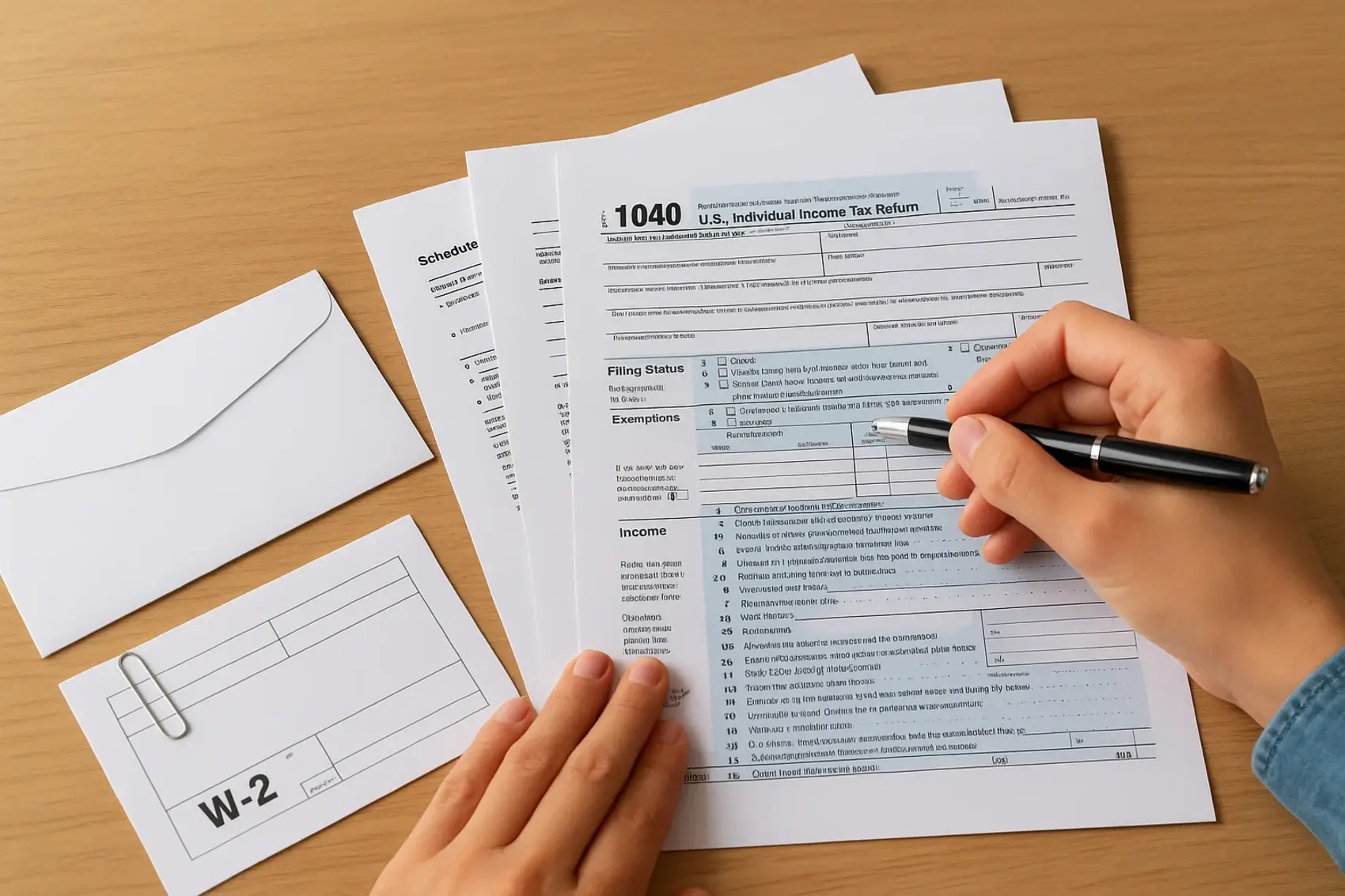
Attach your W-2 and 1099 forms to the front of the 1040 using a paper clip, not staples. The IRS specifically requests paper clips so processors can scan documents without unstapling pages. Arrange the packet in the order TurboTax printed it, and do not rearrange the pages.
Mail each tax year as a separate envelope. Combining multiple years into a single package causes processing errors and delays all of the returns inside it.
Mail to the correct IRS address
The mailing address for prior-year returns depends on your state of residence and whether you're including a payment. Look up the correct address at irs.gov/filing/where-to-file-paper-tax-returns using your state and filing status. Send every envelope via certified mail with return receipt through the U.S. Postal Service so you have documented proof of the date the IRS received each return.
Step 5. Handle payments, plans, and penalties
Once you've mailed your prior-year returns, your next task is resolving any balance due on each year. TurboTax calculates what you owe at the end of each return, and those figures are your starting point. Do not ignore a balance because you can't pay it in full. Filing without paying is far better than not filing at all, since the failure-to-file penalty runs at 5% per month compared to just 0.5% per month for failure to pay.
Calculate what you owe before you send payment
Review the "Amount You Owe" line on each completed return before you mail anything. For TurboTax back taxes returns, this figure combines your unpaid tax, any failure-to-file penalty, and any failure-to-pay penalty that has already accrued. TurboTax does not automatically calculate penalties in the prior-year software, so your actual balance due to the IRS will be higher than the raw tax figure shown on the return. Expect the IRS to send a CP14 notice shortly after processing your return with the precise penalty and interest total.
The IRS calculates interest on unpaid balances daily using the federal short-term rate plus 3%, so the sooner you pay, the less interest you accumulate.
Payment options when you have a balance
You have several ways to pay the IRS directly. The fastest and most documented method is the IRS Direct Pay tool at irs.gov/payments, which lets you schedule a payment from your bank account at no cost. You can also pay by check made out to "United States Treasury" and mail it alongside your return, though mailing separately with the Form 1040-V payment voucher keeps processing cleaner. Credit and debit card payments are accepted through IRS-authorized processors, but those carry a processing fee between 1.82% and 1.98% of the payment amount.
| Payment Method | Cost | Processing Time |
|---|---|---|
| IRS Direct Pay (bank account) | Free | 1 to 2 business days |
| Check with Form 1040-V | Free (postage only) | Based on mail delivery |
| Credit or debit card | 1.82% to 1.98% fee | Immediate |
Request a payment plan if you can't pay in full
If your total balance across all years exceeds what you can pay at once, apply for an IRS installment agreement. You can set up a short-term plan (up to 180 days) or a long-term monthly plan directly at irs.gov/payments/payment-plans-installment-agreements. For balances under $50,000, the online application approves automatically in most cases. Penalties and interest continue to accrue during the plan, but a formal agreement prevents the IRS from taking more aggressive collection action like wage garnishment or liens while you pay down the balance.
Common problems and fixes with prior-year filing
TurboTax back taxes returns surface specific technical and procedural issues that don't show up when you file on time. Knowing the most common failure points in advance lets you resolve them quickly instead of waiting weeks for an IRS letter to tell you something went wrong.
TurboTax can't locate or open a prior-year file
When you install a prior-year desktop version and try to import a saved return, TurboTax sometimes fails to locate the file or opens a blank return instead. This usually happens because the prior-year .tax file is stored in a different folder than the software expects, or because you're running the wrong year's software for the file you're trying to open.
Always confirm which year's software you have open before importing, since TurboTax 2023 cannot open a file saved by TurboTax 2022, and mixing them produces a blank or corrupted return.
The fix is straightforward. Close the software, manually locate your saved .tax file using your operating system's file search, and note the exact folder path. Reopen TurboTax, select "Open Tax Return," and navigate directly to that path. If you never saved a prior-year file and are starting fresh, select "Start a New Return" and enter all data manually using your IRS transcripts as the source.
The calculated refund or balance looks wrong
Prior-year TurboTax software does not automatically account for penalties and interest that have built up since the original filing deadline. If your completed return shows a refund but you've also accrued penalties from late filing, those two figures offset each other in ways the software doesn't display clearly.
Run a manual check by comparing the "Total Tax" and "Total Withholding" lines on your completed Form 1040 against your IRS Wage and Income Transcript for that year. If withholding on the transcript exceeds total tax on your return, you have a refund due before penalties. If the IRS has already assessed penalties, those appear separately on your IRS account transcript under "penalty" line items, not on the return itself.
Your mailed return comes back unprocessed
The IRS returns paper filings for several fixable reasons: missing signature, wrong mailing address, or multiple years in a single envelope. Check the IRS notice or cover letter included with the returned package to identify the specific reason.
Re-sign the return in ink, confirm the correct address at irs.gov using your current state and payment status, and place each tax year in its own separate envelope before mailing again via certified mail. Document the new mailing date with a fresh certified mail receipt.

Wrap up and what to do next
Filing TurboTax back taxes is manageable when you work through it methodically: confirm which years you owe, gather your IRS transcripts, build each return in the correct prior-year software, mail every return as a separate signed package, and address any balance through Direct Pay or a payment plan. Following that sequence keeps you from the mistakes that send returns bouncing back from the IRS.
That said, some back tax situations go beyond what TurboTax handles well. If you have returns going back further than 2022, multiple years of unfiled returns, IRS notices already in hand, or self-employment income that makes the returns complicated, a licensed professional can resolve the situation faster and more accurately than DIY software. Our team at TaxesToday has helped clients across California and nationwide get fully caught up with the IRS at a price that doesn't add to the stress. Get professional back tax help today and stop the penalties from growing.